Stealth being your primary tool, you are able to yet again go
into the memories of heroic assassins with the use of a futuristic
machine, exploring, questing, and free-running across an open map full
of significant landmarks and symbols. The streets are covered with
innocent citizens, angry constables, and enemy faction members that give
you cause to lurk in the shadows of the crowd.
Within moments of stepping into this world, you are given the gift of
a rope launcher from Alexander Graham Bell. With this you are able to
explore the Assassin’s Creed logic filled city like you have before.
Though it does help you get up to certain rooftops with ease, it also
provides a broken logic in which you are able to do something impossible
without it, and those same actions are made undoable with it. It does,
however, offer the means to escape a loosing battle much more
simplistically than you would without having it. Another positive aspect
is the difficulty of certain mission types, whereas previous games
proved it difficult to tail someone, or stealthily maneuver through
enemy territory, the developers have made it a little less hair pulling
in Syndicate.
With an Arkham-style combat, you will find yourself patiently
clicking repetitively through attacks and counter-attacks among dozens
of enemies throughout the game. Allowing for a GTA feel, hijack a
horse-drawn carriage and speed down the streets of London, taking out
the street dwellers as you go.
Though initially these aspects are fun and well placed for the game,
they become a chore when you played a little bit. You fight against a
gang that has ceased control over London, the Blighters, and you are
able to dispatch members of your own gang to handle some of your dirty
work. Still, come for the story, stay in one place for endless battles.
Jacob and Evie Frye are twin assassins in Syndicate, and with the
ability to switch between both during the open-world missions, you are
only able to perform story missions with one or the other. But there is
more to them than just that. They both have their own specializations
towards late gameplay. Jacob is more of a hands on player, as Evie tends
to be a woman of subtle means throughout the game. Both are extremely
lovable, with separate goals for most of the game. Incredibly animated,
their facial expressions are on point, and will even cause you to react
justly to them. You are able to craft or unlock stealthier equipment, or
more lethal weapons to play strongly for their respective toolkits.
With an array of historical figures around every turn, you are able
to find yourself assisting celebrities like Florence Nightingale,
Charles Darwin, and Charles Dickens. The story is great unless you have
been taking notes for the last 40 to 50 Creed games. There are even
brief interludes that are not really meant to be understood. The
missions are better than in the other games and you will be dealing with
side objectives and large areas that are crawling with enemies. There
are some boring side missions, though, that seem repetitive such as
rescuing children from sweatshops, assassinating Templars, and bounty
hunting missions.
There are a few bugs, but every game have them. You can fall into a
white void, you can get stuck in scenery, and you may pinwheel until you
die. It happens, but restarting does stop your progress from that
moment.
The new tools and toys freshen up this game and no matter what, it is
still Assassin’s Creed. The London streets are made well and eventually
they become obstacles, but there are plenty of ways to get around them.
This has been the promise of Oculus all along: a truly immersive virtual reality experience. From the beginning, when Oculus was first introduced as a Kickstarter,
the nerds were already on board—legions of gamers and early adopters
were ready to buy into virtual reality before they even saw it
themselves. For the rest of us, VR has remained an elusive and tedious
source of hype. It’s all talk about the future and the possibilities
that lie ahead, but for the most part, it’s been a future we can’t see.
And when virtual reality doesn’t fill a need, the way a smartphone does
by putting the internet in your pocket, the technology is hard to get
excited about.
Even if you’ve had a glimpse of VR’s “promise”—with Google Cardboard,
Samsung Gear VR, or an early Oculus development kit—and were wowed in
the moment, it was probably more excitement about what it could become,
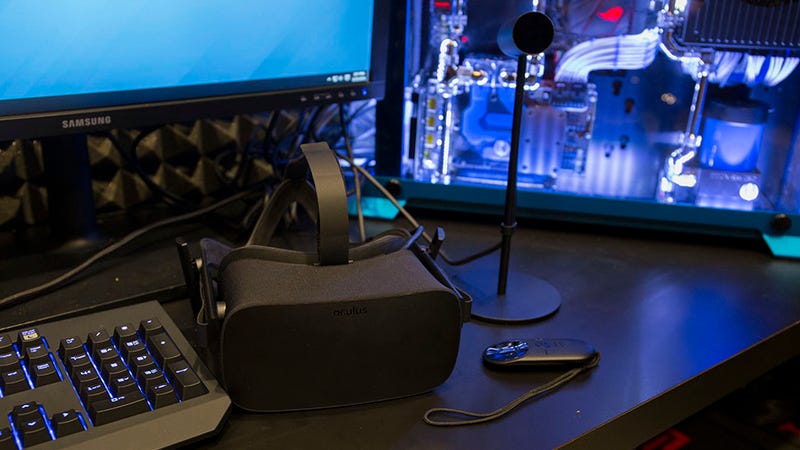
rather than what it was. The Oculus sensor tracks the motion of your head very accurately, making the illusion of virtual reality complete.
Because the best content on the best VR viewers until now has sucked.
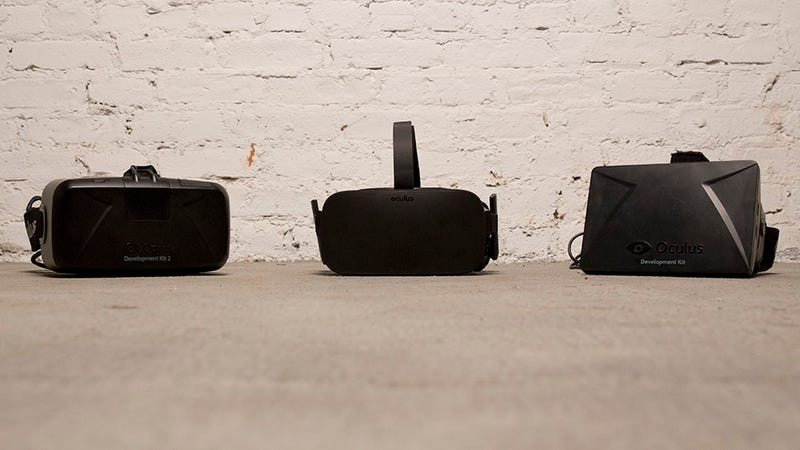
Oculus’ first two headsets were uncomfortable and cumbersome; the image
quality has never been realistic enough to transport you to another
world entirely; and worst of all, the screens inside the headsets can’t
keep up with head movement fast enough to keep people from getting sick.
But now we have the Rift—the final version. A finished consumer
product that delivers a polished experience that can be appreciated not
just by the nerds.
Preparing to go virtual
Despite a valiant effort to make VR dead simple, Oculus Rift is still hardly super simple.
The moment you pull the Rift’s retail package from its brown shipping
carton, you can tell it’s a different device this time around. A white
glossy sleeve encloses a dramatic black box that flips open like a
flight case. Everything is nestled into a molded spot, and a sticker on
the inside-top flap invites you to a setup website, from which you’re
guided step by step through the installation.
Oculus has gone to pains to mimic the experience of famously simple
consumer products (ahem, Apple) right from the start. It’s a valiant
effort for a lumbering headset you’ll eventually have to strap to your
face, and make no mistake—this process is hardly simple. There’s a lot
of stuff in this box:
The headset with its tether cable that connects to your computer
The Oculus sensor and stand, which track the position of the Rift on your head.
The compact Oculus remote, which allows you to navigate menus and adjust the volume while you’re wearing the headset.
An
Xbox One controller for playing games, and the USB adapter that
wirelessly connects the controller to your computer. (At launch, Oculus’
motion tracking Touch controllers won’t be available. According to the
company, they’ll be out later this year.)
And that’s not really all of it, unless you already have a sick
gaming computer. Along with our review unit, Oculus sent us one of its
Oculus-ready PCs: a $950 Asus tower with a Nvidia Geforce GTX 970
graphics card, which costs more than $300 on its own, and a chassis
bedazzled with customizable glowing LEDs that make the thing look like
some mysteriously powerful chunk of alien spaceship. Oculus has done a beautiful job refining the design of the Rift to the point that it’s a convincing consumer electronic device.
After about an hour of unboxing and plugging in a gazillion cables,
you’re ready to actually start setting up the software, which takes
another 20 minutes to download. From there, the step-by-step
installation is a breeze, and requires zero technical know-how. It’s
hardly as easy as plugging in a new MacBook, but having had the
displeasure of assembling and installing Oculus development kits, I can
tell you that this new process is nothing short of revelatory.
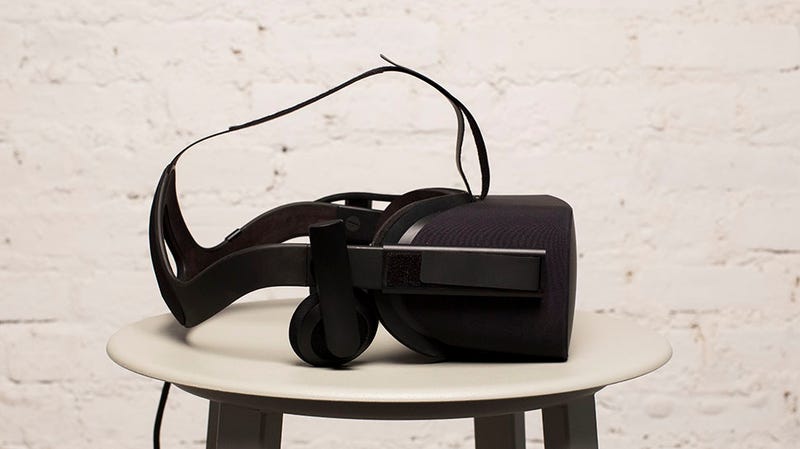
The new Oculus headset looks like an all-black pair of ski goggles
with sturdy straps to affix it to your head. Holding it in both hands,
it feels like about the weight of a pound of ground coffee. Inside are
two modestly adjustable lenses, which are your portholes to the OLED
display. The headset has integrated on-ear speakers, which rest
comfortably on your head and remove the need for additional cords
latching you to your PC. There’s only one bundle of cords snaking out
from the headset, and with the exception of that pesky primary tether,
which every so often catches a snag and pulls you out of your virtually
transported state, Oculus has succeeded in making something that looks
and feels like a premium consumer electronic device.
This ain’t your dad’s VR
Enter the void
I’ve never understood Oculus’ insistence that you need to be standing
to use the Rift. Until more movement-oriented experiences exist—and the
Touch motion controllers are available—sitting in a swivel chair allows
more than a sufficient range of movement. Although it’s weird to see
how far you’ve rolled away from a desk when you emerge from the void
beyond.
Once you’ve put the thing on your head, you’re presented with a
simple UI, called Oculus Home, which allows you to browse apps in your
library and the Oculus store, where you can download more. Many of the
apps are huge, and on crowded broadband, I was more likely to leave them
downloading overnight than sit at the computer twiddling my thumbs.
In virtual reality, moving your head changes the perspective of the
image you’re viewing, as if it was actually in front of you. You
interact with the virtual world using a manual input device, like an
Xbox One controller or the Oculus remote. To navigate the UI, you simply
point your head at what you want to interact with, and click on it with
your controller. The movement is smooth, and pointing your head at
something inside the Rift is basically identical to turning your head in
real life. Just make sure you know where the controller is when you put
the headset on, or you’ll have an unpleasant moment blindly fumbling
around for it. Oculus
has mastered the design of the Rift such that it’s comfortable to wear
for long periods of time. It still looks a little goofy though.
The available apps hint at the potential for the Rift beyond gaming,
but they’re not ready for prime time. Oculus Video, for example, allows
you to view 360 and 2D content through the headset. (It includes a
mandatory subcategory for 360 videos on Facebook, which now owns
Oculus.) When watching movies in “lean back” mode, I find myself much
more aware of the headset then when I’m playing games. It’s really no
better than watching a movie in a darkened room. There are other
experimental apps, like a VR tour of the human body, but they’re not
that interesting. It’s all more future than now.
All fun and games
The Rift was really designed as a gaming device, and this is where it
shines. After sampling a few titles, it’s clear that the simpler the
controls for a game, the more enjoyable and immersive I found the
experience. I had the most fun playing the whimsical and childishly
simple Lucky’s Tale, in which you play a cartoon fox hopping along in the world, racking up points, evading enemies, and completing challenges. People in the office who had less gaming experience found Lucky’s Tale immediately
intuitive too, and it shows how a VR headset can actually simplify
gaming and make it more accessible. Most traditional 360 games (think
Call of Duty or other first-person shooters) require two kinds of
directional inputs (joystick or arrows on a controller)—one of them
controls “the camera” or the way you’re facing, and the other controls
your directional movement. Combining them seamlessly requires a fair
amount of coordination, but a VR headset takes care of the camera view,
which makes it a lot easier. Gunjack, the arcade shooter, is
easy to master because you point your head in the direction of vessels
you need to shoot out of the sky. It’s fun and super satisfying, without
a huge learning curve.
On the opposite end of the spectrum is Eve: Valkyrie, a space simulator spin off of Eve Online,
which is probably the type of title hardcore gamers are looking for.
Since I’m not one of these gamers, the controls for piloting the
spaceship were tough for me. I found myself getting sick after about
five minutes, and the missions were so stressful and intense that I
threw off my headset. It’s not surprising that making a realistic and
enjoyable spaceship simulator would be difficult, and I did get better
over the week. But I’m still not hurting to play the game.
The failings of the future
I’m not saying it would be impossible for me to adjust to Eve: Valkyrie
eventually, but a period of adjustment is exactly what Oculus is trying
to eliminate. The company has worked for four years to make a product
accessible enough for anybody. This title, and others like it, are going
to fall painfully short of the mainstream accessibility Oculus wants to
achieve in the long run—no matter how much the technology improves. While we’re on flaws, I’ll add a few more. There are still moments
when you see hints of “screen-door effect”—wherein the space between
pixels is visible, because the OLED displays are almost on top of of
your eyeballs. The effect is akin to seeing the world through a
screened-in porch. Plus the image is occasionally blurry, and the sweet
spot for the lenses feels elusive and small. At times, it’s like you’re
staring through a tunnel at the image, insofar as the edges of your
field-of-view look artificially cut off.
Then there’s the price. The Rift package alone costs $600. Add the
$950 PC we used, and you’re looking at a total of $1550. It’s a shitload
of money, and probably enough to mean Oculus will remain mostly niche.
In other words, even if Oculus made a device that’s accessible to all,
it’s still pretty much only for gamers. If you’re one of those people
who is ready to drop that kind of coin, you should wait for next week’s
reviews of the HTC Vive, which has a headset with similar specifications
to the Rift.
What Oculus has accomplished is remarkable. There’s plenty that even
the completely uninitiated user can enjoy. More importantly, the Rift is
truly immersive in most cases. The image quality is mostly excellent,
and the head-tracking is nearly flawless. Indeed, perhaps what’s most
significant is that there are moments when I can say unreservedly and
without caveats that I am enjoying the Rift right in the moment—not as a
device indicative of some desirable future, but as a device to own
right now. I still can’t afford the future of virtual reality, but for
the first time, I actually want to.
README
Oculus Rift is fun. Seriously, man, playing games is fun.
The Rift is miraculously easy to install and use.
The experience is wholly immersive, and doesn’t make you want to vomit (most of the time).
More complex and disorienting games will still turn your stomach.
The Rift is mostly good for games right now—everything else is bogus.
You
can find the “private browsing” mode on any internet browser these
days. Chrome has Incognito Mode, Safari and Firefox has Private
Browsing, and Internet Explorer has InPrivate. Though these browsers
have called it different names, the main point they want to get across
is that you should use this particular option to “hide” your online
activity. Still, while you might obtain some security by switching to
this mode, you’d really only stay safe to a certain extent.
In this article, we’ll discuss the hard truths about private
browsing, as well as what other option you have in achieving better
online security.
What is private browsing?
Let’s talk about what you can achieve with private browsing.
To fully understand the advantages of this option, we should start with
what you get when you’re not connected to a private browser.
Keep a browsing and search history of all the websites you’ve
visited and searches you’ve made. This is meant to make your future
internet use more convenient.
Allow cookies for a more efficient browsing experience, e.g. using an auto-complete form to log in automatically.
Edit your extensions preferences to hide or show them however you please.
Marketing engines will be able to store your advertisement and browsing preferences and adjust accordingly.
Stay logged into social media and other personal accounts.
Your ISP (Internet Service Provider) can track your online activity.
You are vulnerable to anyone gaining access, legal or not, to your
computer or cloud storage accounts. This includes all of your saved
files.
[Image credit: "Chrome – Incognito” by Chris Messina, used under CC BY-NC-SA / Slight color filters added, image cropped]Now
that you understand what you’re subjected to when browsing without any
protection, let’s discuss what you gain from private browsing on any
browser.
Your browsing history is not stored during private browsing, so there’s no way for anyone to snoop on you later on.
Cookies are created when you visit websites, but will be discarded
immediately upon exiting the browser. This means that the only time
you’ll be able to utilize and store these cookies is while you have an
active opened window.
Developers can choose to disable their specific plugins or extensions for users in private browsing mode.
You still benefit from the convenience of stored data. All your
saved passwords and previous browsing history are attainable in private
browsing, as the only data that is discarded is your current online
activity.
That’s the general idea. Furthermore, if you study how much of
your online data can be recorded and stored by whoever gains access,
you’ll realize that tracking points are still viable in both modes.
Hold on… What on earth are tracking points?
If you haven’t already heard, every website you visit stores metadata
specific to your activity on the site. Moreover, there’s usually more
than one “big brother” entity observing and tracking you.
What’s the point of tracking your metadata, though? Well, there are a few main reasons:
Analysis software, plugins, etc. (e.g. Google Analytics) actively seek out how much traffic is being directed to websites.
Knowing your preferences through the websites you visit will help
these companies market their goods and services, even while you’re on
completely other websites. This is usually done by using Google AdWords
and social media.
By understanding what you like, you’ll be provided with
advertisements and other recommendations that are suited towards your
personal preferences. This includes web articles and videos. What this
means is that most of the websites where you are prompted to log in to
view content probably utilize tracking points.
Besides websites that track your personal preferences, you
should keep in mind that your actual ISP records and stores your
metadata. In this case, no private browsing mode will protect you. This
information should tell you that no amount of private browsing will
actually keep you completely hidden from onlookers. In short, private
browsing is not the solution for actually staying private.
If it won’t completely hide me, what’s the point of private browsing?
There are still various benefits of utilizing the private browsing mode, including:
1. Secured login information
Cookies are only active within your private browsing session. This
means that any website you log into while utilizing the private mode
will not store your login information. Once you exit the browser, you
don’t have to worry about any active account data.
This feature is especially helpful if you share your device with
someone, such as a shared apartment or a public computer lab. You can
also utilize the private browsing mode if you borrow someone else’s
device. Not only will your own account be erased from the computer, but
the owner of the computer will be able to access their accounts easily
without having to discard yours.
2. Multiple account logins
Those used to Google’s multi-login feature might find it inconvenient
that most other websites do not offer the same option. However, with
private browsing, you can open one window to log into one account and
open another to log into a completely different one. Cookies work
differently in private browsing, and you’ll simply be asked to log in
again whenever you visit a website on a separate page.
Apart from regular users, developers also benefit from this private
mode. They can test out their websites via various perspectives, all
without needing separate plugins or extensions for multi-logins.
3. Hidden browser history
Whatever reasons you might have had, you’ve probably deleted your
browsing history a few times in the past. It’s such an annoyance,
though.
Using private browsing is much simpler than having to go into your
settings to clear your past history. Once you’re done with your session,
you can exit the private mode and your activity will be completely
deleted. This is a great tool for when you need a quick exit strategy,
e.g. visiting extracurricular websites at work.
What’s the solution to this privacy issue?
An extreme method of avoiding trackers is to just get offline and
live in the analog world. However, this is next to impossible in this
day in age, and luckily, you have several better options for your online
privacy.
Why not just log out?
The
simplest way of insuring that no one snoops into your accounts is to
always log out. Don’t automatically save your passwords and no one will
be given access. If you aren’t actively logged in, there’s a greater
chance that advertisers won’t be able to track your movements.
“Do Not Track”
If you use Firefox, you can take advantage of Do Not Track, a feature that basically tells websites that you don’t want your data stored. Read up on it here.
When enabled, the browser itself shows websites that you don’t want any
information tracked for certain purposes, such as advertising. Keep in
mind, however, that this isn’t a blocking feature, and websites don’t
have an obligation to accept your preference.
Specialized browsers and search engines
These days, there are search engines like DuckDuckGo that purposely block websites from tracking your data. It’s a great tool for the security-conscious.
You could also try out the Tor Browser. Known to be the most secure browser available, you will be able to completely remain anonymous when browsing the internet.
Just get a good VPN
If you’re not familiar with all the different browsers and don’t feel
like wasting time with constant logouts, you might want to invest in a
VPN (Virtual Private Network). Most of these services, such as PureVPN, are affordable and can provide you with ultimate anonymity.
PureVPN will assign you to a new IP address so that the ISP or
malicious hackers can’t target you, all the while routing your traffic
through its highly-encrypted servers before sending it to you. You can
also access virtually any website or content through the unique geo-lock
bypassing feature a new IP address offers.
A VPN like this makes sure that you aren’t victim to anyone
attempting to obtain your information or access to your computer. It
will also block any viruses or malware via its incredibly secure
servers. When connected to a VPN server, you can feel free to go about
your business without feeling paranoid that hackers might be looking in.
The
internet is full of many great things and can be an excellent source of
information. Sadly, just like in the pre-internet world, there are
those who misuse it and are out to steal people’s personal information.
Safe Browsing is a feature that Internet Explorer, Google Chrome, and
Mozilla Firefox all offer. It protects you from phishing, malware, and
downloads that are harmful to your PC.
Safe Browsing is a security measure that is constantly updating
itself with new websites that go onto its list. Every time you visit a
page, it is checked against this list. When you are on a site that made
it to the list, you get a warning from your browser.
Google Chrome
Naturally, these warnings will only help you when the pages you visit appear on Google’s list. However, most phishing
attacks will only last for a few hours. That’s why Google Chrome now
has the ability to analyze the properties of every page you visit so it
can determine if it is potentially dangerous.
This information does not get shared with Google, but is handled
locally on your PC. The suspicious website has to reach a higher level
of suspicion before Chrome reports it to Google and lets Google decide
whether or not to add it to the list.
When it comes to malicious downloads, they offer a real challenge due
to being hidden inside programs that make them hard to detect. The way
Chrome handles this is by checking the executable download files against
a list of known good publishers and files. It basically sends the info
to Google, where it is checked against a catalog of reputable publishers
and websites, and undergoes analysis. If there is possible danger,
Google will send that info to Chrome which in turn will give you a
warning.
Internet Explorer: Enhanced Protection
Sadly, Google Safe Browsing will not protect you against viruses.
It only guards against phishing attacks. There is, however, a Google
Safe Browsing extension (Enhanced Protection feature) that can
strengthen your protection. It sends encrypted URLs that you visit along
with some bits of information concerning the site’s content to Google
and lets Google analyze it.
When this feature is “enabled,” the URL of any site you visit is
securely sent to Google to be evaluated. Along with this, there will
also be a really condensed version of the content of that page so Google
could compare the similarities between the authentic and forged pages.
When “disabled”, the feature sends no information Google unless it is
one of those sites that Google has already designated as unsafe. Keep
in mind that by enabling Enhanced Protection, you are giving Google Safe
Browsing access to the most updated fraud information regarding every
page you visit.
Internet Explorer: InPrivate mode
With the InPrivate Browsing feature, you can surf the internet
without leaving any trail. This gives you, the user, a way to select
what information you will share while browsing. With this feature
enabled, new cookies do not get stored, and your temporary files are
automatically deleted once your InPrivate Browsing closes. The cookies
will be kept in the memory so your pages are working properly, but they
are cleared when the browser is closed.
The Temporary Internet Files will be stored on the disk. That way
your pages will work properly and they will be cleared when the browser
is closed. Your history, form and auto-complete data, and passwords do not get stored.
The best thing you can do is to take the time to study the Safe
Browsing for your browser of choice. Learn how to enable and disable it
and how they function. In the world we live in, online security is
something everybody needs to learn about. There are excellent tools
available, but they will only work if you know how to use them
correctly. Do some homework and protect yourself against malicious attacks.
Do you realize that third party sites may be tracking your browsing habits? Do Not Track (DNT)
is a new program that allows users to turn off the tracking by the
sites they don’t visit. Every time you navigate to a different page,
third party sites and advertisement networks are constantly trying to
gather as much information about you as they can, this includes: sites
visited, searches, browser type, demography and the list goes on.
In an age when web standards are constantly developing and user
experience is constantly changing, there is a loss of privacy due to
online marketers. DNT is here to help put the users back in control by
giving them the ability to choose how their information is shared.
So, what exactly is DNT?
Do Not Track is a HTTP header which was proposed in 2009 by Sid Stamm,
Christopher Soghoian, and Dan Kaminsky. It requests web applications
not to track you, pretty simple. The first implementation was within
Internet Explorer, and then it transitioned into Safari, Opera and
Firefox.
It’s similar to a phones Do Not Call registry which is a way to opt
out of being called by telemarketers. When DNT is enabled within your
browser, it provides a Do Not Track request in the header.
Values supported by DNT:
0 (DNT: 0) is when tracking is allowed
1 (DNT: 1) is when tracking has been denied
null, this is when no preference has been settings
When processed within the site, it alerts them of your settings.
Should you use DNT?
All of your activities online, including searches, clicks, sites,
even your location and purchases are tracked by different third parties
like online marketers, researchers and ad companies. The list goes on
and on.
Those who are worried about the safety of their online privacy are
constantly erasing their browser cookies or may even use the privacy
mode, but these methods alone are not enough to keep from being tracked.
Third parties such as advertisement companies use methods that track
your information even if you have removed your cookies. They’re LSO’s,
also referred to as supercookies.
LSO’s are a type of cookies which provide improved tracking abilities
than the regular cookies, and they don’t allow you to directly remove
them from the browser (with the exception of certain plugins).
Advertising companies will know when you search for something like “dog
trainer”.
Those who are not worried about their online privacy don’t understand
how it’s harmful to be tracked, however there are searches you may
think twice about being tracked when you consider it, such as
“Medication for HIV”.
If you do not have DNT enabled in your browser, your online
information and activities are in the open for all sorts of third party
sites to snatch up.
Do Not Track survey
Mozilla took a survey using those who had adopted DNT. Since DNT was
released in Firefox, there has been an increase in the industry support,
and more people using the feature. They found that 8.6% of desktop
users, and 19% of mobile users had adopted DNT.
The survey used more than 10,000 users across 140 different countries
and showed 49% of users agreed that their privacy was more secure with
DNT enabled. 12% of those who didn’t set preferences said they believed
their privacy was respected.
What Do Not Track does
It alerts third party sites not to track your activities, but leaves 1st
party sites alone. These are the ad networks that appear on the page
you are visiting, analytics, and so on. They will be trying to track
your activities and learn more about you. Having DNT enabled, your
browser alerts them you do not want to be tracked. If they honor the request, you won’t be tracked.
An example, you visit your favorite website and you see ads on the side from Google, Google would be the 3rd
party and the site it’s self is the first party. If DNT is enabled,
Google would be told not to track you and the other site wouldn’t be
affected.
What Do Not Track doesn’t do
It doesn’t stop the ads from being shown. You will still see ads on
sites, but they will be more vague and not as tailored to you. It also
doesn’t affect the first party site from tracking your information, like
when you use Google services such as their search or Gmail. It doesn’t
affect social plugins from tracking you, such as Facebook.
If a user has an account with any of the social networks, they
probably see themselves as the first party, and will track even with DNT
enabled. It also cannot prevent Facebook and similar companies from
tracking people though the “Like” buttons and similar methods.
Downside to DNT
DNT basically runs on an honor system. This means that if the third
party site agrees to honor the enabled DNT feature, you won’t be
tracked. However, if they don’t honor the feature, you would still be
tracked. This is because DNT has not been backed by a legislative or
regulatory authority, it’s just a voluntary step in technology.
Companies have come to an agreement that they would put a halt on
using data collect from users browser activities to future customize
advertisements, and would not use it for credit, employment, insurance
or healthcare purposes. However, the information could still be in
certain purposes like product development and market research, and it
can still be collected by law enforcement.
In addition, those that do not want to be tracked have to first
enable DNT within each browser used, this includes on mobile devices.
Have DNT working for you
Many of the popular browsers such as Safari, Firefox and Opera
support DNT. Chrome users have the option of installing the plugin “Keep
My Opts-Out” which is used for the same thing as DNT. If you are using a
browser not listed above and it does not support DNT, look into
switching your browser.
With supported browsers, enabling DNT is simple. Just clear your
browsers cookies, and choose to enable it. Once enabled, test to see if
DNT is working for you. If you forget to remove your cookies first, it
won’t work correctly. Once it’s enabled and setup correctly, you will
notice ads are more generic, and no loner personalized based on your
searches, etc.
Conclusion
DNT has become a must-have when it comes to online privacy, it is
supported in many of the most popular browsers and provides users with
control over what companies track them. However, they must be honoring
the system to work properly. Mozilla is focused on making DNT a system
that works completely, but until most companies begin honoring the
system, user privacy will still be up for grabs to marketers.
This large flaw may provide hackers the opportunity needed to conduct arbitrary code execution.
Although the month was like in patches for critical security, there
was a serious vulnerability that reportedly affected all versions of
Windows platform.
Microsoft’s latest released security bulletin that has been dubbed
‘Patch Tuesday’, suggested that any users on Windows Vista or later,
including Windows 10, need to patch right away to avoid dealing with
serious flaws in how system operates and handles specific files.
This critical vulnerability is referred to as MS16-013,
and it may allow hackers to conduct arbitrary code execution using the
logged-in user, with administrators being at most risk. The attacker has
to get the user to open a special journal file that allows the hacker
access to the system. Then they will be able to open programs, create
new accounts, and even delete information as the administrator.
The vulnerability also affects Windows Server 2016 Tech Preview 4. On
a positive note, Microsoft stated they were not aware of the flaw being
taken advantage of by any attackers.
Microsoft also launched three additional patches for critical flaws that impacted both Windows and Office software.
The MS16-012 vulnerability patch focuses on areas that can allow
hackers to operate the system and run code on systems that have been
affected. The user would be tricked into opening special PDF files, with
those using Windows 8.1 and Windows 10 being at most risk. The flaw had
been reported to Microsoft privately, so there are no reasons to
believe any attacker has taken advantage of the flaw at this time.
Meanwhile, MS16-015 corrects various flaws with Microsoft Office’s
memory that has been corrupted, allowing attackers to execute code
remotely once the user opens a special Office file. The attacker would
then have the same system access as the user that is logged in. These
flaws were also reported privately, with the exception of a SharePoint
cross-site scripting issue that was disclosed publicly.
Then there is MS16-022 that patches over two dozen different flaws and vulnerabilities associated with Adobe Flash Player for Windows 8.1 and higher.
Along with their monthly bulletins, Microsoft also released a
cumulative patch for IE, referred to as MS16-009. Windows 10 users have a
patch for Edge as well, called MS16-011.
Of all these, the more serious vulnerabilities allow hackers to take
advantage of both IE and Edge browsers, controlling how they handle
various objects within the memory, and then parse an HTTP response.
Fortunately, these too were reported privately to Microsoft and show no
signs of attackers taking advantage of them.
There were four more patches released as well that regarded
‘important’ issues like denial of service and elevation of privileged
issues.
You will be able to use the regular update channels for February’s patches.
Viruses
were more than likely already evolving when the population started on
this planet. Since the invention of computer technology, programmers
have upped their wits about biological viruses and found a way to
transform that into something useful with the computer, and it came in
the way of tiny programs.
A virus’s purpose is to spread itself and continue to multiply. A
consequence of this is the damage it can do to the host. Entering
through an email is the most common way to catch a virus.
Everyone should have some knowledge about how emails can get infected
by a virus, and always stay alert of them. In this article you will
learn about the three most common ways people get infected by a virus
through emails. You will also be shown how to avoid getting the viruses
into your computer.
The first way of getting an email virus is receiving an email hoax
To start out, you should understand that a virus is merely a program
invented to commit sabotage. Of course, that isn’t the case in all
instances, some of them concentrate on a person’s naivety.
An email can get a virus through chain letters, or something that is
asking you help with donations, or virus warnings. These can all fall
under email hoax.
The email itself can also be a virus. This type of virus can clog up
your mail servers and/or email inbox. The damage from an email virus can
cause you a lot of pain in the way of wasting your time, messing with
your resources, and of course, your energy.
Anytime you receive an email that has the possibility of being a hoax
you should not forward it to anyone else. The only time you should
forward an email is when you are positive that it is a genuine email,
and not a hoax.
There are lists of the latest top 10 viruses, top 10 virus hoaxes, and top 10 virus alerts. They can all be found at About.com, if you want a good resource that will keep you informed about email hoaxes.
At Hoax-Slayer.com
you will eventually be able to verify the credibility of any email you
receive. In the meantime, if you have received an email that you feel
may have been trying to steal information from you, or defraud you in
any way, you should report it.
Email attachments can carry viruses too
Getting an infection with a computer virus, such as a self
replicating program, can be a lot more critical than forwarding an email
with a virus, which doesn’t cause much damage, but they can forward
themselves to all of your contacts.
However, there are email viruses that can be pre-programmed to look
for certain files on your computer’s system and destroy them. Most of
these viruses are going to be through email attachments.
Email attachments containing viruses will be in the form of one of the following: Executable program file: exe, .com, .zip, .vbs, .scr, .pif, .dll, and .js. Macro virus file: .doc, .dot, .xis, .xlt.
To avoid coming across an email with a virus, simply do not open any
attachments that may come with it. However, you can open your word
documents in Open Office or WordPad, and there are other programs that
don’t support macros.
There are many viruses that will add two file extensions in order to
try and hide the fact of their true nature, similar to the viruses
referred to as the ILOVEYOU virus. The file containing it was actually
named “LOVE-LETTER-FOR-YOU.TXT.vbs.”
Just keep in mind that when you read a standard email, it isn’t going
to do any damage, as long as you remember not to open any attachments.
If the attachment does not get opened, it will not be able to
contaminate your computer.
Any email that you receive from someone you do not know should be
considered suspicious, and the email along with the attachment should be
deleted.
On the other hand, it is possible for you to receive an email from
someone you do know, and that email had gotten a virus beforehand. Of
course, this kind of email virus will be a lot harder to catch.
The most you can do in a case where you’re concerned with one of your
contacts sending an email that has a virus (they don’t even suspect
that, of course) is to carefully look the email over and hope that you
catch something that gives you a warning.
Desktop email programs such as Outlook and Thunderbird don’t have a
way to scan your email attachments for a virus, but if you do not open
the attachment you will be able to save it to your hard drive so it will
be accessible for a virus scanner.
To do it this way you would have to remember never open the attachment until it has been scanned.
The body of an email can also have a virus
That brings us to the body of an email, where there can be content
that is intended to be malicious. When it comes to emails, the intended
use of the HTML coding is to allow the embedding of links and pictures
into an email.
However, it can also be used for bad purposes, such as embedding
content/scripts that will be executed automatically, for the intention
of infecting your computer.
You need to use your mail program in the default mode. It will block
the HTML, prompting you to click if you feel it is a trustworthy site.
This should never be turned off.
Maybe it’s all confusing for you just now. Nevertheless, there are
even URLs that carry viruses in disguise, and these may be in what seem
to be harmless links that use grazing green grass to draw you into their
pasture, leading you to a site that gives you a malicious virus, or it
may even be a self executing virus.
In conclusion
Attackers are aware that a percentage of people are going to click
their mouse on just about anything, and they use this against them, and
everyone else. Whether it is a harmless attempt for attention or an
actual threat against your computer, it calls for immediate action.
Here’s what you can do to protect yourself from email viruses:
Smart is always better than quick.
When suspicious, verify.
If the sender is not known, don’t open the email, do not open
attachment or links, don’t forward, and do not look at the HTML content.
Keep updated on the definitions of viruses, and use an antivirus program.
You do not want your mail program to automatically download and
open any attachments, and certainly not to display any HTML content
without your permission at the time. Be sure to have your mail program
set up properly and stay safe.
Try as we might to safeguard our PCs,
computer viruses are still a fact of life. As much as we’d like to view
the internet as a safe haven for our time-wasting pursuits, there are a
number of risks that must be taken into account. Pop-up ads, social
media, email attachments – all these are major threats to our computer’s
safety and well-being.
Your computer is bound to have contact with viruses, no matter how many precautions you take. While removal of malware
can be a difficult process, it can be done for free. Follow this
helpful guide where we lay out the steps you will need to take.
There are many kinds of malware
The term “virus” is not strictly used to describe actual computer
viruses, but is actually a catch-all term that is used to cover any sort
of computer infection. When it comes to malware (the correct term for
these infections), there are three different types to be on the lookout
for: worms, Trojans, and viruses.
There is also a form of malware known as scareware,
which will send you prompts that request money in order to fix your
issue. Another common form of malware is adware, which is unsolicited
advertisement that gets installed on your personal computer.
A common mistake made by users is assuming that their antivirus program
will catch all of the infections for them. While they certainly are
intelligent and can help greatly, they are much more effective when you
remain diligent about installing the latest updates.
Top 7 signs of malware
An antivirus program should be used in tandem with your own malware hunting skills. And it helps if you know what to look for.
1. Homepage changes without your consent
If you are now being directed to a different homepage when you log in
to your preferred web browser, this is a sign that your computer has
become infected with malware. When your homepage randomly changes
without your consent, this is a telltale sign of malware related
infection.
2. Site re-directions
Just like the previous sign, a web browser that starts directing you
to sites that you did not choose to go to is most likely infected with
malware.
3. Pop-up ads
No lengthy explanation needed here as we all know what pop-ups are and why they are bad.
4. Regular crashes
While an occasional crash may be unrelated to malware, frequent
crashes are typically a symptom of a larger problem. If crashes are
happening in conjunction with the rest of these problems, you are
likelier to have malware.
5. Unfamiliar toolbar
If you see a toolbar that you know you did not install, then it is
probably there due to malware problems that have gone without
correction.
6. Slow running times
Computers run slowly when they are online, but if yours is also running slowly offline, then this is a sign that you have a malware issue.
7. Poor browser loading
If your browser’s internet connection is in perfect working order,
but your pages are not loading in a timely manner, this is a malware
related problem more often than not.
Simple steps to take once your PC is infected
Once a user learns that their computer is infected, there are
feelings of panic and trepidation. A person often feels completely
unprotected in a scenario such as this. However, a malware infection
does not have to be the death knell for your PC (or its file library).
By following these ten easy steps, you can rid yourself of worms,
Trojans, and viruses, allowing your computer to resume its normal
running capacity.
1. Be sure to back up important personal files
Backing up files
is something that we should all be doing before malware has a chance to
attack. Even if you already are, your files should also be copied into a
second location, independent of your PC, just in case. There is no need
to back up every single file on your computer, as you could end up
saving infected files along with those that are clean.
2. Disconnect your PC from the internet
Once an infection has set up a shop inside your computer, it will
transmit signals by using your internet connection. When you are
battling malware, it is important to disconnect from the internet
entirely. If you are a desktop web browser, all you will need to do is
unplug your Ethernet cord. A laptop user must unplug the Ethernet cable
from its connection, and a wireless browser can disable their connection
by pressing a button on their laptop or find their internet connection
within the task bar.
3. Locate an antivirus rescue disk and boot in safe mode
When a user boots their computer in safe mode, this allows them to
prevent every component of the PC that is non-essential from having a
chance to run, which gives them a far greater probability of locating
the issue. If you wish to start your computer in safe mode, press the
restart button, then press and hold the F8 button during the startup
process, and select the Safe mode option.
Should the Safe mode option not be highlighted
automatically, you are able to navigate to it by using your arrow keys.
After you’ve booted your computer, you can continue the process of removing malware.
If the computer doesn’t start, a Windows rescue disk can be used. There
are also free rescue disks available from companies such as AVG and Avira. A Linux Live disc also works wonders in these instances.
4. Track down another functioning computer
In the majority of the malware cleanup scenarios, you are going to
need to use another reliable computer with internet access. This is due
to the fact that you will need internet access to research the problems
that you are attempting to correct. You will also need a reliable
connection in order to download the programs required to fix the
problem.
A person who does not own a second computer should make time to speak
with a trusted friend or a family member and explain their situation.
College or university students will typically be able to sidestep this
issue, as their tuition payments entitle them to the use of a public
computer lab.
When it’s time to transfer new programs to your old computer, a flash
drive without any other files of value on it works best. A removable
hard drive or an SD card can also do the trick.
5. Search for (and identify) the possible malware infections
Most malware infections that take place are specific in nature and
require a certain procedure to be removed properly. Generic viruses tend
to be much rarer. Do a basic search on your computer, incorporating
every piece of information that you have about the malware. There are
also a number of helpful forums that provide information about specific
infections.
Gather as much information as possible so that you have a starting
point for your search. In an ideal scenario, you will be able to find
detailed instructions that show you how to remove the malware from start
to finish. When you are completely lost for answers, turn to the
internet or a computer care professional for additional help.
6. Use programs to scan for infections until they are eliminated
There will be instances where you cannot track any reliable
information about the particular nature of your computer’s infection,
but fear not, there is no shortage of tools that can be used in order to
eliminate the issue. There are general malware blocking and removal
programs, antivirus removers, root kit removers, as well as antiadware
and antispyware programs. HitmanPro and the Malwarebytes’ antimalware programs have both proven to be effective in the removal or infections. AdwCleaner
is a reliable source for the removal of adware. Best of all, all of
these programs are completely free. They can also be used simultaneously
if necessary.
The programs that you end up deciding to use must be downloaded onto
the clean secondary computer that you have procured previously, and once
they are ready for use, they must be transferred onto the infected PC.
Many of these programs require internet access to fully download, so you
may need to return to Safe mode to run scans before reconnecting to the internet.
It is important to note that while you can use more than one anti
malware program, the usage of multiple antivirus programs will cause
them to conflict with one another.
7. Clean out useless programs and temporary files
After you’ve managed to remove the infection(s) from your computer, it is time to give your filing systems a serious overhaul. CCleaner works great for the cleanup process, although it is not known as a security program. DriveTidy and System Ninja are also available to aid you during the cleaning process.
Another helpful hint: using an uninstallation app such as GeekUninstaller
will provide the help you need in identifying unwanted and unneeded
programs. Once you are able to identify potentially harmful software
that made its way onto your computer, the better your chances of
removing it.
8. Get rid of your system restore points
While System Restore can certainly be helpful in a variety of
instances and has gotten us all out of a jam or two, any system restore
points that are used on your computer are susceptible to the presence of
malware. Deleting your system restore points significantly cuts down on
your personal computer’s vulnerability.
Unless you are absolutely certain about the location where you found
the malware, it’s important to remove these points. For safety’s sake,
it is recommended for you to get rid of each and every system restore
point.
Follow these steps in order to remove the points (for users of Windows Vista 7): Click on your Start button, right click where it says Computer, then click on Properties.
On the left panel, click System Protection. From there, you may need to enter your administrator’s password for authentication. Once you’ve clicked the System Protection tab, click Configure, Delete and OK.
Windows 8 users who do not have a Start Menu tool should use
the cursor of their mouse to pull up the Charms bar at the lower right
hand corner. Click the magnifying glass that signifies Search, type in the word “recovery”, and then click on Settings. Once you have done this, you should see a Recovery option.
After clicking on this option, you are taken to a window that
provides users with tools to use in the recovery process. A link will be
shown that says Configure System Restore. Then you must follow
the previous set of instructions. XP users are advised to use the
instructions that Microsoft has helpfully provided to them.
9. Treating your post-removal issues
The problems do not cease once you’ve removed the harmful programs
from your computer. Microsoft has a “Fix It” tool that is readily
available to you, but for situations where this may not work, here are
some common solutions to some common problems:
Computer won’t connect to internet
Select Real Security have provided a guide that is easy to use, one
that should help you find the solution to any connectivity issues.
Search engine redirection
If your search engines continue to redirect to unwanted or unknown
websites, this is usually the result of an uncleared Java cache. If you
do not know how to clear your cache, Java provides a helpful tutorial.
Should this fail to fix the problem, go into the settings of your
browser and make the necessary changes manually. These solutions also
work in situations where a browser is being directed to a homepage that
is unfamiliar.
Files and programs are unable to open
Select Real Security provides four very simple methods for remedying this issue:
Simply click on the Unhide option to restore your desktop to normal state.
Windows firewall and update malfunctions
Tweaking.com
offers a Windows Repair tool that can fix a variety of issues. It can
do so much that it’s easier to list the options you should not be
checking off. Leave repair WMI, Windows updates, and Windows firewall
unchecked, as well as reset registry and file permissions.
Slow computer
Computer still running slow? Try the following options:
Make sure your computer is only running one antivirus program.
Type “sfc/scannow” in your Windows Run window, then press the restart button.
Get rid of all temporary files.
10. Change all your passwords
Last, but certainly not least, change all your passwords so that any
vulnerable information that was exposed during your infection cannot be
used to harm you in any way.
Do the proper research about how to create passwords that are easy to
remember, yet strong.
Final step: preventing additional infections
With so many issues to worry about during your web browsing, every
potential issue cannot always be addressed. That is why it is important
to do as much research as possible, so that you are safeguarded against
things like malware and adware.
Removing malware from your personal (or your loved one’s) computer
can be a tremendously exhilarating experience. Providing yourself with
the insight necessary allows you to stop making excuses and start
telling success stories.
One of the best ways to customize your Android device is to
install a launcher app which gives you tons of options, themes, and
icons for your smartphone and/or tablet. Android launchers can give you
almost complete control over how your smartphone acts when you launch
your apps, when you switch screens, and when you carry out many other
tasks at hand. Let’s look at 8 of the best Android launchers on the
market.
Smart Launcher: Best Android launcher for running circles round your smartphone
Smart Launcher turns things upside down. Now, rather than neat rows
and boxes, Smart Launcher provides you with rings of your most used apps
along with vertical cascades of categorized apps. Smart Launcher is
linked to your app manager, which means that when you delete an icon,
you will also automatically delete the app as well. It’s simple to use
and very unique. In fact, it is very popular – it has a rating of 4.6
stars with over five million installs.
Next Launcher is quite possibly the coolest 3D launcher available.
It’s hard to put into words just how radically different this launcher
is compared with anything else on this list. All the best features
aren’t free, as with most launchers, but the wow-factor of the Premium
version is worth the cost. If you want a hi-tech, attention-grabbing
launcher on your phone, try the free version out and see if you can
resist upgrading.
APUS Launcher: Best Android launcher for sophistication
Currently APUS Launcher is by far one of the most well-liked
launchers for the Android. This is in part due to its striking Pinko
theme. The APUS launcher is a combination of custom icons, themes, and
some brand-new features, making APUS Launcher one of the most inclusive
launchers currently available.
Best of all, it costs nothing, so make sure you check out APUS launcher as the animations are among the best you can find.
The economical nature of Hola Launcher has created a name for itself.
The download size is just slightly over 1 MB, and it comes with the
reorganized interface, some gorgeous themes, and new app icons. Not only
is the file size very small, its use of processing power is pretty hard
to beat as well – it uses less RAM than the quickest Android launchers
available.
Apex Launcher: Best Android launcher for customization
Right now, Apex Launcher is by far one of the most popular launchers
for Android. There have been over a million downloads from the Google
Play store, and the average Apex Launcher rating is 4.3 stars. It
provides customization options that are practically endless, an app
drawer control, a complete home screen, gesture settings, and tons of
themes, icons, transition effects, and launch animations.
That’s all available in the free version. There is also a paid
version that adds even more features to the formidable free launcher.
Nova Launcher is the undeniable king of alternative Android launchers
that holds a spot on nearly everyone’s smartphone. With over five
million Google Play store downloads, it provides an available and
practical entry point into the world of launchers.
A recently added feature, ‘icon normalization,’ is a fan-favorite,
using complex algorithms that ensure your icons consistently cover a
region of your screen. So, instead of fitting the icons within a frame
that is equally sized, they are scaled so that they cover the same area,
no matter what shape they are, which creates a much more appealing
look.
GO Launcher EX: Best Android launcher for style and simplicity
GO Launcher EX has a 4.5-star rating and over one hundred million
installations, making it stand out from the competition. GO Launcher is
the most polished free launcher available, offering excellent animations
combined with 3D effects. What’s disappointing with the GO Launcher is
all of the cross-promotion.












 The
simplest way of insuring that no one snoops into your accounts is to
always log out. Don’t automatically save your passwords and no one will
be given access. If you aren’t actively logged in, there’s a greater
chance that advertisers won’t be able to track your movements.
The
simplest way of insuring that no one snoops into your accounts is to
always log out. Don’t automatically save your passwords and no one will
be given access. If you aren’t actively logged in, there’s a greater
chance that advertisers won’t be able to track your movements.


 Sadly, Google Safe Browsing will not protect you against


 It alerts third party sites not to track your activities, but leaves 1st
party sites alone. These are the ad networks that appear on the page
you are visiting, analytics, and so on. They will be trying to track
your activities and learn more about you. Having DNT enabled, your
browser alerts them you do not want to be tracked. If they
It alerts third party sites not to track your activities, but leaves 1st
party sites alone. These are the ad networks that appear on the page
you are visiting, analytics, and so on. They will be trying to track
your activities and learn more about you. Having DNT enabled, your
browser alerts them you do not want to be tracked. If they