Everyone learns in grade school that you can’t divide by zero,
but few of us ever learn (or fully understand) why. The stock answer is
that it gives you an answer of infinity. The truth is a bit more
nuanced than that, and an old mechanical calculator offers the perfect
illustration.
Try to divide a number by zero with a standard calculator, and you’ll
just get an error message. But check out what happens when someone
tries to do this on a Facit ESA-01 mechanical calculator, with the cover
helpfully removed so all the internal working are exposed:
The machine pretty much goes insane, its gears and cogs hammering away in a nonstop frenzy of clacking. WTF?
It has to do with how such machines work, and also with the nature of
division—it’s basically just “glorified subtraction,” as the folks at Numberphile
will tell you. To divide 20 by 4, the mechanical calculator perform a
sequence of steps: 20 minus 4 is 16, 16 minus 4 is 12, 12 minus 4 is 8, 8
minus 4 is 4, and 4 minus 4 is 0. Voila! It takes five steps, so 20
divided by 4 equals 5.
But 20 divided by zero is just subtracting nothing from 20 over and
over again. The calculator never arrives at an answer because it would
take an infinite number of steps. And infinity is really more of a
concept than an actual number.
So as Eric Limer explains over at Popular Mechanics,
“The underlying cause for the freakout is that the poor machine is
trying to hammer out an infinite sequence of commands, one by one. A
computer will always do exactly what you tell it to do, even if that
will take literally forever.”
We live in an era of accelerating change, when
scientific and technological advancements are arriving rapidly. As a
result, we are developing a new language to describe our civilization as
it evolves. Here are 20 terms and concepts that you’ll need to navigate
our future.
Back in 2007 I put together a list of terms every self-respecting futurist should be familiar with.
But now, some seven years later, it’s time for an update. I reached out
to several futurists, asking them which terms or phrases have emerged
or gained relevance since that time. These forward-looking thinkers
provided me with some fascinating and provocative suggestions — some
familiar to me, others completely new, and some a refinement of earlier
conceptions. Here are their submissions.
1. Co-veillance
Futurist and scifi novelist David Brin suggested this one. It’s kind of a mash-up between Steve Mann’s sousveillance and Jamais Cascio’s Participatory Panopticon, and a furtherance of his own Transparent Society
concept. Brin describes it as: “reciprocal vision and supervision,
combining surveillance with aggressively effective sousveillance.” He
says it’s “scrutiny from below.” As Brin told io9:
Folks are rightfully worried about surveillance powers
that expand every day. Cameras grow quicker, better, smaller, more
numerous and mobile at a rate much faster than Moore’s Law (i.e. Brin’s corollary).
Liberals foresee Big Brother arising from an oligarchy and faceless
corporations, while conservatives fret that Orwellian masters will take
over from academia and faceless bureaucrats. Which fear has some
validity? All of the above. While millions take Orwell’s warning
seriously, the normal reflex is to whine: “Stoplooking at us!” It cannot
work. But what if, instead of whining, we all looked back? Countering
surveillance with aggressively effective sousveillance — or scrutiny
from below? Say by having citizen-access cameras in the camera control
rooms, letting us watch the watchers?
Brin says that reciprocal vision and supervision will be hard to
enact and establish, but that it has one advantage over “don’t look at
us” laws, namely that it actually has a chance of working. (Image
credit: 24Novembers/Shutterstock)
2. Multiplex Parenting
This particular meme — suggested to me by the Institute for the Future’s Distinguished Fellow Jamais Cascio — has only recently hit the radar. “It’s in-vitro fertilization,” he says, “but with a germline-genetic mod twist.” Recently sanctioned by the UK, this is the biotechnological advance where a baby can have three genetic parents
via sperm, egg, and (separately) mitochondria. It’s meant as a way to
flush-out debilitating genetic diseases. But it could also be used for
the practice of human trait selection, or so-called “designer babies”.
The procedure is currently being reviewed for use in the United States. The era of multiplex parents has all but arrived.
3. Technological Unemployment
Futurist and scifi novelist Ramez Naam
says we should be aware of the potential for “technological
unemployment.” He describes it as unemployment created by the deployment
of technology that can replace human labor. As he told io9,
For example, the potential unemployment of taxi drivers,
truck drivers, and so on created by self-driving cars. The phenomenon is
an old one, dating back for centuries, and spurred the original Luddite
movement, as Ned Ludd is said to have destroyed knitting frames for
fear that they would replace human weavers. Technological unemployment
in the past has been clearly outpaced (in the long term) by the creation
of new wealth from automation and the opening of new job niches for
humans, higher in levels of abstraction. The question in the modern age
is whether the higher-than-ever speed of such displacement of humans can
be matched by the pace of humans developing new skills, and/or by
changes in social systems to spread the wealth created.
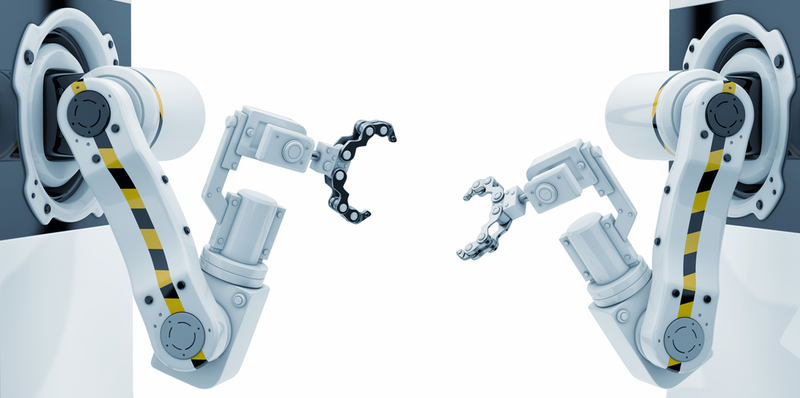
Indeed, the potential for robotics and AI to replace workers of all
stripes is significant, leading to worries of massive rates of
unemployment and subsequent social upheaval. These concerns have given
rise to another must-know term that could serve as a potential antidote:
guaranteed minimum income. (Image credit: Ociacia/Shutterstock)
4. Substrate-Autonomous Person
In the future, people won’t be confined to their meatspace bodies.
This is what futurist and transhumanist Natasha Vita-More describes as
the “Substrate-Autonomous Person.” Eventually, she says, people will be
able to form identities in numerous substrates, such as using a
“platform diverse body” (a future body that is wearable/usable in the
physical/material world — but also exists in computational environments
and virtual systems) to route their identity across the biosphere, cybersphere, and virtual environments.
“This person would form identities,” she told me. “But they would
consider their personhood, or sense of identity, to be associated with
the environment rather than one exclusive body.” Depending on the
platform, the substrate-autonomous person would upload and download into
a form or shape (body) that conforms to the environment. So, for a
biospheric environment, the person would use a biological body, for the
Metaverse, a person would use an avatar, and for virtual reality, the
person would use a digital form.
5. Intelligence Explosion
It’s time to retire the term ‘Technological Singularity.’ The reason, says the Future of Humanity Institute’s
Stuart Armstrong, is that it has accumulated far too much baggage,
including quasi-religious connotations. It’s not a good description of
what might happen when artificial intelligence matches and then exceeds
human capacities, he says. What’s more, different people interpret it
differently, and it only describes a limited aspect of much broader
concept. In its place, Armstrong says we should use a term devised by
the computer scientist I. J. Good back in 1967: the “Intelligence explosion.”
It describes the apparent sudden increase in the
intelligence of an artificial system such as an AI. There are several
scenarios for this: it could be that the system radically self improves
itself, finding that as it becomes more intelligent, it’s easier for it
to become more intelligent still. But it could also be that human
intelligence clusters pretty close in mindspace, so a slowly improving
AI could shoot rapidly across the distance that separates the village
idiot from Einstein. Or it could just be that there are strong skill
returns to intelligence, so that an entity need only be slightly more
intelligent that humans to become vastly more powerful. In all cases,
the fate of life on Earth is likely to be shaped mainly by such “super-intelligences”.
6. Longevity Dividend
While many futurists extol radical life extension on humanitarian
grounds, few consider the astounding fiscal benefits that are to be had
through the advent of anti-aging biotechnologies. The Longevity
Dividend, as suggested to me by bioethicist James Hughes of the IEET, is
the “assertion by biogerontologists that the savings to society of
extending healthy life expectancy with therapies that slow the aging
process would far exceed the cost of developing and providing them, or
of providing additional years of old age assistance.” Longer healthy
life expectancy would reduce medical and nursing expenditures, argues
Hughes, while allowing more seniors to remain independent and in the
labor force. No doubt, the corporate race to prolong life is heating up in recognition of the tremendous amounts of money to be made — and saved — through preventative medicines.
7. Repressive Desublimation
This concept was suggested by our very own Annalee Newitz, editor-in-chief of io9 and author ofScatter, Adapt And Remember.
The idea of repressive desublimation was first developed by by
political philosopher Herbert Marcuse in his groundbreaking book Eros and Civilization. Newitz says:
It refers to the kind of soft authoritarianism preferred
by wealthy, consumer culture societies that want to repress political
dissent. In such societies, pop culture encourages people to desublimate
or express their desires, whether those are for sex, drugs or violent
video games. At the same time, they’re discouraged from questioning
corporate and government authorities. As a result, people feel as if
they live in a free society even though they may be under constant
surveillance and forced to work at mind-numbing jobs. Basically,
consumerism and so-called liberal values distract people from social
repression.
8. Intelligence Amplification
Sometimes referred to as IA, this is a specific subset of human enhancement — the augmentation of human intellectual capabilities via technology.
“It is often positioned as either a complement to or a competitor to
the creation of Artificial Intelligence,” says Ramez Naam. “In reality
there is no mutual exclusion between these technologies.” Interestingly,
Naam says IA could be a partial solution to the problem of
technological unemployment — as a way for humans, or posthumans, to
“keep up” with advancing AI and to stay in the loop.
9. Effective Altruism
This is another term suggested by Stuart Armstrong. He describes it as
the application of cost-effectiveness to charity and
other altruistic pursuits. Just as some engineering approaches can be
thousands of times more effective at solving problems than others, some
charities are thousands of time more effective than others, and some
altruistic career paths are thousands of times more effective than
others. And increased efficiency translates into many more lives saved,
many more people given better outcomes and opportunities throughout the
world. It is argued that when charity can be made more effective in this
way, it is a moral duty to do so: inefficiency is akin to letting
people die.
10. Moral Enhancement
On a somewhat related note, James Hughes says moral enhancement
is another must-know term for futurists of the 21st Century. Also known
as virtue engineering, it’s the use of drugs and wearable or implanted
devices to enhance self-control, empathy, fairness, mindfulness,
intelligence and spiritual experiences.
11. Proactionary Principle
This one comes via Max More, president and CEO of the Alcor Life
Extension Foundation. It’s an interesting and obverse take on the
precautionary principle. “Our freedom to innovate technologically is
highly valuable — even critical — to humanity,” . “This
implies several imperatives when restrictive measures are proposed:
Assess risks and opportunities according to available science, not
popular perception. Account for both the costs of the restrictions
themselves, and those of opportunities foregone. Favor measures that are
proportionate to the probability and magnitude of impacts, and that
have a high expectation value. Protect people’s freedom to experiment,
innovate, and progress.”
12. Mules
Jamais Cascio suggested this term, though he admits it’s not widely used. Mules are unexpected events — a parallel to Black Swans
— that aren’t just outside of our knowledge, but outside of our
understanding of how the world works. It’s named after Asimov’s Mule
from the Foundation series.
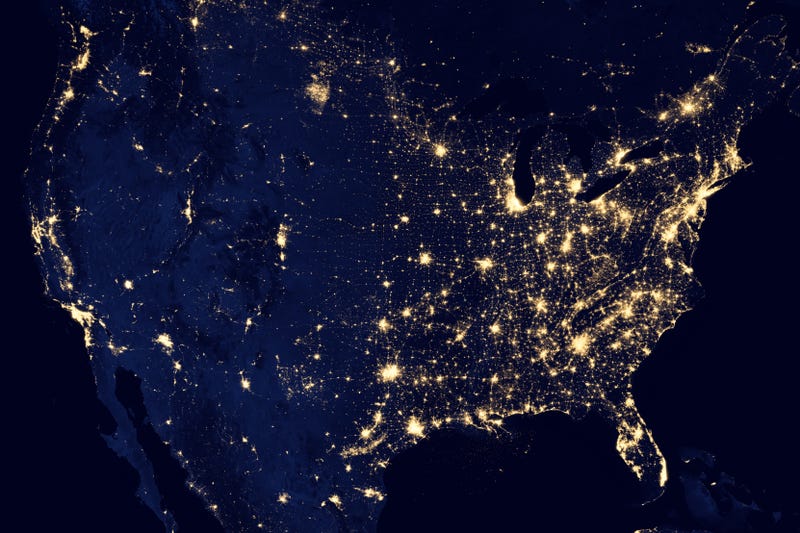
13. Anthropocene
Another must-know term submitted by Cascio, described as “the current
geologic age, characterized by substantial alterations of ecosystems
through human activity.” (Image credit: NASA/NOAA).
14. Eroom’s Law
Unlike Moore’s Law, where things are speeding up, Eroom’s Law
describes — at least in the pharmaceutical industry — things that are
slowing down (which is why it’s Moore’s Law spelled backwards). Ramez
Naam says the rate of new drugs developed per dollar spent by the
industry has dropped by roughly a factor of 100 over the last 60 years.
“Many reasons are proposed for this, including over-regulation, the
plucking of low-hanging fruit, diminishing returns of understanding more
and more complex systems, and so on,” he told io9.
15. Evolvability Risk
Natasha Vita-More describes this as the ability of a species to
produce variants more apt or powerful than those currently existing
within a species:
One way of looking at evolvability is to consider any
system — a society or culture, for example, that has evolvable
characteristics. Incidentally, it seems that today’s culture is more
emergent and mutable than physiological changes occurring in human
biology. In the course of a few thousand years, human tools, language,
and culture have evolved manifold. The use of tools within a culture has
been shaped by the culture and shows observable evolvability-from
stones to computers-while human physiology has remained nearly the same.
16. Artificial Wombs
“This is any device, whether biological or technological, that allows humans to reproduce without using a woman’s uterus,”
says Annalee Newitz. Sometimes called a “uterine replicator,” she says
these devices would liberate women from the biological difficulties of
pregnancy, and free the very act of reproduction from traditional
male-female pairings. “Artificial wombs might develop alongside social
structures that support families with more than two parents, as well as
gay marriage,” says Newitz.
They are dependent on certain (mild) assumptions on how
the brain works, and requires certain enabling technologies, such as
scanning devices to make the original brain model, good understanding of
biochemistry to run it properly, and sufficiently powerful computers to
run it in the first place. There are plausible technology paths that
could allow such emulations around 2070 or so, with some large
uncertainties. If such emulations are developed, they would
revolutionise health, society and economics. For instance, allowing
people to survive in digital form, and creating the possibility of
“copyable human capital”: skilled, trained and effective workers that
can be copied as needed to serve any business purpose.
Armstrong says this also raises great concern over wages, and over the eventual deletion of such copies.
Imagine the fantastic prospect of creating interfaces that connect
the brains of two (or more) humans. Already today, scientists have
created interfaces that allow humans to move the limb — or in this case,
the tail — of another animal. At first, these technologies will be used
for therapeutic purposes; they could be used to help people relearn how
to use previously paralyzed limbs. More radically, it could eventually
be used for recreational purposes. Humans could voluntarily couple
themselves and move each other’s body parts.
20. Computational Overhang
This refers to any situation in which new algorithms can suddenly and
dramatically exploit existing computational power far more efficiently
than before. This is likely to happen when tons of computational power
remains untapped, and when previously used algorithms were suboptimal.
This is an important concept as far as the development of AGI
(artificial general intelligence) is concerned. As noted by Less Wrong, it
signifies a situation where it becomes possible to create
AGIs that can be run using only a small fraction of the easily
available hardware resources. This could lead to an intelligence
explosion, or to a massive increase in the number of AGIs, as they could
be easily copied to run on countless computers. This could make AGIs
much more powerful than before, and present an existential risk.
Luke Muehlhauser from the Machine Intelligence Research Institute (MIRI) describes it this way:
Suppose that computing power continues to double
according to Moore’s law, but figuring out the algorithms for human-like
general intelligence proves to be fiendishly difficult. When the
software for general intelligence is finally realized, there could exist
a ‘computing overhang’: tremendous amounts of cheap computing power
available to run [AIs]. AIs could be copied across the hardware base,
causing the AI population to quickly surpass the human population.
The resurrection of Jesus from the dead is the be-all and the
end-all of the Christian faith. If Jesus didn’t rise from the dead, all
bishops, priests, and Christian ministers should go home and get honest
jobs, and all the Christian faithful should leave their churches
immediately. As Paul himself put it: “If Jesus is not raised from the
dead, our preaching is in vain and we are the most pitiable of men.”
It’s no good, of course, trying to explain the resurrection away or
rationalize it as a myth, a symbol, or an inner subjective experience.
None of that does justice to the novelty and sheer strangeness of the
Biblical message. It comes down finally to this: if Jesus was not raised
from death, Christianity is a fraud and a joke; if he did rise from
death, then Christianity is the fullness of God’s revelation, and Jesus
must be the absolute center of our lives. There is no third option.
I want to explore, very briefly, a handful of lessons that follow
from the disquieting fact of the Resurrection. First, this world is not
it. What I mean is that this world is not all that there is. We live our
lives with the reasonable assumption that the natural world as we’ve
come to know it through the sciences and discern it through common sense
is the final framework of our lives and activities. Everything (quite
literally, everything) takes place within the theater of our ordinary
experience. And one of the most powerful and frightening features of the
common-sense world is death. Every living thing dies and stays dead.
Indeed, everything in the universe, scientists tell us, comes into being
and then fades away permanently.
But what if this is not in fact the case? What if the laws of nature
are not as iron-clad as we thought? What if death and dissolution did
not have the final say? What if, through God’s power and according to
his providence, a “new heavens and a new earth” were being born? The
resurrection of Jesus from the dead shows as definitively as possible
that God is up to something greater than we had imagined or thought
possible. And therefore we don’t have to live as though death were our
master and as though nihilism were the only coherent point of view.
After he had encountered the risen Christ, Paul could even taunt death:
“Where is your sting?” In light of the resurrection, we can, in fact,
begin to see this world as a place of gestation, growth and maturation
toward something higher, more permanent, more splendid.
Here’s a second lesson derived from the resurrection: the tyrants
know that their time is up. Remember that the cross was Rome’s way of
asserting its authority. Roman authorities declared that if you run
afoul of our system, we will torture you to death in the most
excruciating (ex cruce, from the cross) way possible and then
we will leave your body to waste away be devoured by the beasts of the
field. The threat of violence is how tyrants up and down the centuries
have always asserted their authority. Might makes right. The crucified
Jesus appeared to anyone who was witnessing the awful events on Calvary
to be one more affirmation of this principle: Caesar always wins in the
end. But when Jesus was raised from the dead through the power of the
Holy Spirit, the first Christians knew that Caesar’s days were numbered.
Jesus had taken the worst that the world could throw at him and he
returned, alive and triumphant. They knew that the Lord of the world was
no longer Caesar, but rather someone whom Caesar had killed but whom
God had raised from death. This is why the risen Christ has been the
inspiration for resistance movements up and down the centuries. In our
own time we saw how deftly John Paul II wielded the power of the cross
in Communist Poland. Though he had no nuclear weapons or tanks or mighty
armies, John Paul had the power of the resurrection, and that proved
strong enough to bring down one of the most imposing empires in the
history of the world. Once again, the faculty lounge interpretation of
resurrection as a subjective event or a mere symbol is exactly what the
tyrants of the world want, for it poses no real threat to them.
The third great lesson of the resurrection is that the path of
salvation has been opened to everyone. Paul told us that “though he was
in the form of God, Jesus did not deem equality with God something to be
grasped. Rather he emptied himself and took the form of slave…accepting
even death, death on a cross.” In a word, Jesus went all the way down,
journeying into pain, despair, alienation, even godforsakenness. He went
as far as you can go away from the Father. Why? In order to reach all
of those who had wandered from God. Then, in light of the resurrection,
the first Christians came to know that, even as we run as fast as we can
away from the Father, all the way to godforsakenness, we are running
into the arms of the Son. The opening up of the divine life allows
everyone free access to the divine mercy. And this is why the Lord
himself could say, “When the Son of Man is lifted up, he will draw all
people to himself,” and why Paul could assert in 1 Corinthians, “When
everything is subjected to him, then the Son himself will also be
subjected to the one who subjected everything to him, so that God may be
all in all.” The resurrection shows that Christ can gather back to the
Father everyone whom he has embraced through his suffering love.
So on Easter Sunday, let us not domesticate the still stunning and
disturbing message of resurrection. Rather, let us allow it to unnerve
us, change us, set us on fire.
You
can find the “private browsing” mode on any internet browser these
days. Chrome has Incognito Mode, Safari and Firefox has Private
Browsing, and Internet Explorer has InPrivate. Though these browsers
have called it different names, the main point they want to get across
is that you should use this particular option to “hide” your online
activity. Still, while you might obtain some security by switching to
this mode, you’d really only stay safe to a certain extent.
In this article, we’ll discuss the hard truths about private
browsing, as well as what other option you have in achieving better
online security.
What is private browsing?
Let’s talk about what you can achieve with private browsing.
To fully understand the advantages of this option, we should start with
what you get when you’re not connected to a private browser.
Keep a browsing and search history of all the websites you’ve
visited and searches you’ve made. This is meant to make your future
internet use more convenient.
Allow cookies for a more efficient browsing experience, e.g. using an auto-complete form to log in automatically.
Edit your extensions preferences to hide or show them however you please.
Marketing engines will be able to store your advertisement and browsing preferences and adjust accordingly.
Stay logged into social media and other personal accounts.
Your ISP (Internet Service Provider) can track your online activity.
You are vulnerable to anyone gaining access, legal or not, to your
computer or cloud storage accounts. This includes all of your saved
files.
[Image credit: "Chrome – Incognito” by Chris Messina, used under CC BY-NC-SA / Slight color filters added, image cropped]Now
that you understand what you’re subjected to when browsing without any
protection, let’s discuss what you gain from private browsing on any
browser.
Your browsing history is not stored during private browsing, so there’s no way for anyone to snoop on you later on.
Cookies are created when you visit websites, but will be discarded
immediately upon exiting the browser. This means that the only time
you’ll be able to utilize and store these cookies is while you have an
active opened window.
Developers can choose to disable their specific plugins or extensions for users in private browsing mode.
You still benefit from the convenience of stored data. All your
saved passwords and previous browsing history are attainable in private
browsing, as the only data that is discarded is your current online
activity.
That’s the general idea. Furthermore, if you study how much of
your online data can be recorded and stored by whoever gains access,
you’ll realize that tracking points are still viable in both modes.
Hold on… What on earth are tracking points?
If you haven’t already heard, every website you visit stores metadata
specific to your activity on the site. Moreover, there’s usually more
than one “big brother” entity observing and tracking you.
What’s the point of tracking your metadata, though? Well, there are a few main reasons:
Analysis software, plugins, etc. (e.g. Google Analytics) actively seek out how much traffic is being directed to websites.
Knowing your preferences through the websites you visit will help
these companies market their goods and services, even while you’re on
completely other websites. This is usually done by using Google AdWords
and social media.
By understanding what you like, you’ll be provided with
advertisements and other recommendations that are suited towards your
personal preferences. This includes web articles and videos. What this
means is that most of the websites where you are prompted to log in to
view content probably utilize tracking points.
Besides websites that track your personal preferences, you
should keep in mind that your actual ISP records and stores your
metadata. In this case, no private browsing mode will protect you. This
information should tell you that no amount of private browsing will
actually keep you completely hidden from onlookers. In short, private
browsing is not the solution for actually staying private.
If it won’t completely hide me, what’s the point of private browsing?
There are still various benefits of utilizing the private browsing mode, including:
1. Secured login information
Cookies are only active within your private browsing session. This
means that any website you log into while utilizing the private mode
will not store your login information. Once you exit the browser, you
don’t have to worry about any active account data.
This feature is especially helpful if you share your device with
someone, such as a shared apartment or a public computer lab. You can
also utilize the private browsing mode if you borrow someone else’s
device. Not only will your own account be erased from the computer, but
the owner of the computer will be able to access their accounts easily
without having to discard yours.
2. Multiple account logins
Those used to Google’s multi-login feature might find it inconvenient
that most other websites do not offer the same option. However, with
private browsing, you can open one window to log into one account and
open another to log into a completely different one. Cookies work
differently in private browsing, and you’ll simply be asked to log in
again whenever you visit a website on a separate page.
Apart from regular users, developers also benefit from this private
mode. They can test out their websites via various perspectives, all
without needing separate plugins or extensions for multi-logins.
3. Hidden browser history
Whatever reasons you might have had, you’ve probably deleted your
browsing history a few times in the past. It’s such an annoyance,
though.
Using private browsing is much simpler than having to go into your
settings to clear your past history. Once you’re done with your session,
you can exit the private mode and your activity will be completely
deleted. This is a great tool for when you need a quick exit strategy,
e.g. visiting extracurricular websites at work.
What’s the solution to this privacy issue?
An extreme method of avoiding trackers is to just get offline and
live in the analog world. However, this is next to impossible in this
day in age, and luckily, you have several better options for your online
privacy.
Why not just log out?
The
simplest way of insuring that no one snoops into your accounts is to
always log out. Don’t automatically save your passwords and no one will
be given access. If you aren’t actively logged in, there’s a greater
chance that advertisers won’t be able to track your movements.
“Do Not Track”
If you use Firefox, you can take advantage of Do Not Track, a feature that basically tells websites that you don’t want your data stored. Read up on it here.
When enabled, the browser itself shows websites that you don’t want any
information tracked for certain purposes, such as advertising. Keep in
mind, however, that this isn’t a blocking feature, and websites don’t
have an obligation to accept your preference.
Specialized browsers and search engines
These days, there are search engines like DuckDuckGo that purposely block websites from tracking your data. It’s a great tool for the security-conscious.
You could also try out the Tor Browser. Known to be the most secure browser available, you will be able to completely remain anonymous when browsing the internet.
Just get a good VPN
If you’re not familiar with all the different browsers and don’t feel
like wasting time with constant logouts, you might want to invest in a
VPN (Virtual Private Network). Most of these services, such as PureVPN, are affordable and can provide you with ultimate anonymity.
PureVPN will assign you to a new IP address so that the ISP or
malicious hackers can’t target you, all the while routing your traffic
through its highly-encrypted servers before sending it to you. You can
also access virtually any website or content through the unique geo-lock
bypassing feature a new IP address offers.
A VPN like this makes sure that you aren’t victim to anyone
attempting to obtain your information or access to your computer. It
will also block any viruses or malware via its incredibly secure
servers. When connected to a VPN server, you can feel free to go about
your business without feeling paranoid that hackers might be looking in.
The
internet is full of many great things and can be an excellent source of
information. Sadly, just like in the pre-internet world, there are
those who misuse it and are out to steal people’s personal information.
Safe Browsing is a feature that Internet Explorer, Google Chrome, and
Mozilla Firefox all offer. It protects you from phishing, malware, and
downloads that are harmful to your PC.
Safe Browsing is a security measure that is constantly updating
itself with new websites that go onto its list. Every time you visit a
page, it is checked against this list. When you are on a site that made
it to the list, you get a warning from your browser.
Google Chrome
Naturally, these warnings will only help you when the pages you visit appear on Google’s list. However, most phishing
attacks will only last for a few hours. That’s why Google Chrome now
has the ability to analyze the properties of every page you visit so it
can determine if it is potentially dangerous.
This information does not get shared with Google, but is handled
locally on your PC. The suspicious website has to reach a higher level
of suspicion before Chrome reports it to Google and lets Google decide
whether or not to add it to the list.
When it comes to malicious downloads, they offer a real challenge due
to being hidden inside programs that make them hard to detect. The way
Chrome handles this is by checking the executable download files against
a list of known good publishers and files. It basically sends the info
to Google, where it is checked against a catalog of reputable publishers
and websites, and undergoes analysis. If there is possible danger,
Google will send that info to Chrome which in turn will give you a
warning.
Internet Explorer: Enhanced Protection
Sadly, Google Safe Browsing will not protect you against viruses.
It only guards against phishing attacks. There is, however, a Google
Safe Browsing extension (Enhanced Protection feature) that can
strengthen your protection. It sends encrypted URLs that you visit along
with some bits of information concerning the site’s content to Google
and lets Google analyze it.
When this feature is “enabled,” the URL of any site you visit is
securely sent to Google to be evaluated. Along with this, there will
also be a really condensed version of the content of that page so Google
could compare the similarities between the authentic and forged pages.
When “disabled”, the feature sends no information Google unless it is
one of those sites that Google has already designated as unsafe. Keep
in mind that by enabling Enhanced Protection, you are giving Google Safe
Browsing access to the most updated fraud information regarding every
page you visit.
Internet Explorer: InPrivate mode
With the InPrivate Browsing feature, you can surf the internet
without leaving any trail. This gives you, the user, a way to select
what information you will share while browsing. With this feature
enabled, new cookies do not get stored, and your temporary files are
automatically deleted once your InPrivate Browsing closes. The cookies
will be kept in the memory so your pages are working properly, but they
are cleared when the browser is closed.
The Temporary Internet Files will be stored on the disk. That way
your pages will work properly and they will be cleared when the browser
is closed. Your history, form and auto-complete data, and passwords do not get stored.
The best thing you can do is to take the time to study the Safe
Browsing for your browser of choice. Learn how to enable and disable it
and how they function. In the world we live in, online security is
something everybody needs to learn about. There are excellent tools
available, but they will only work if you know how to use them
correctly. Do some homework and protect yourself against malicious attacks.
Do you realize that third party sites may be tracking your browsing habits? Do Not Track (DNT)
is a new program that allows users to turn off the tracking by the
sites they don’t visit. Every time you navigate to a different page,
third party sites and advertisement networks are constantly trying to
gather as much information about you as they can, this includes: sites
visited, searches, browser type, demography and the list goes on.
In an age when web standards are constantly developing and user
experience is constantly changing, there is a loss of privacy due to
online marketers. DNT is here to help put the users back in control by
giving them the ability to choose how their information is shared.
So, what exactly is DNT?
Do Not Track is a HTTP header which was proposed in 2009 by Sid Stamm,
Christopher Soghoian, and Dan Kaminsky. It requests web applications
not to track you, pretty simple. The first implementation was within
Internet Explorer, and then it transitioned into Safari, Opera and
Firefox.
It’s similar to a phones Do Not Call registry which is a way to opt
out of being called by telemarketers. When DNT is enabled within your
browser, it provides a Do Not Track request in the header.
Values supported by DNT:
0 (DNT: 0) is when tracking is allowed
1 (DNT: 1) is when tracking has been denied
null, this is when no preference has been settings
When processed within the site, it alerts them of your settings.
Should you use DNT?
All of your activities online, including searches, clicks, sites,
even your location and purchases are tracked by different third parties
like online marketers, researchers and ad companies. The list goes on
and on.
Those who are worried about the safety of their online privacy are
constantly erasing their browser cookies or may even use the privacy
mode, but these methods alone are not enough to keep from being tracked.
Third parties such as advertisement companies use methods that track
your information even if you have removed your cookies. They’re LSO’s,
also referred to as supercookies.
LSO’s are a type of cookies which provide improved tracking abilities
than the regular cookies, and they don’t allow you to directly remove
them from the browser (with the exception of certain plugins).
Advertising companies will know when you search for something like “dog
trainer”.
Those who are not worried about their online privacy don’t understand
how it’s harmful to be tracked, however there are searches you may
think twice about being tracked when you consider it, such as
“Medication for HIV”.
If you do not have DNT enabled in your browser, your online
information and activities are in the open for all sorts of third party
sites to snatch up.
Do Not Track survey
Mozilla took a survey using those who had adopted DNT. Since DNT was
released in Firefox, there has been an increase in the industry support,
and more people using the feature. They found that 8.6% of desktop
users, and 19% of mobile users had adopted DNT.
The survey used more than 10,000 users across 140 different countries
and showed 49% of users agreed that their privacy was more secure with
DNT enabled. 12% of those who didn’t set preferences said they believed
their privacy was respected.
What Do Not Track does
It alerts third party sites not to track your activities, but leaves 1st
party sites alone. These are the ad networks that appear on the page
you are visiting, analytics, and so on. They will be trying to track
your activities and learn more about you. Having DNT enabled, your
browser alerts them you do not want to be tracked. If they honor the request, you won’t be tracked.
An example, you visit your favorite website and you see ads on the side from Google, Google would be the 3rd
party and the site it’s self is the first party. If DNT is enabled,
Google would be told not to track you and the other site wouldn’t be
affected.
What Do Not Track doesn’t do
It doesn’t stop the ads from being shown. You will still see ads on
sites, but they will be more vague and not as tailored to you. It also
doesn’t affect the first party site from tracking your information, like
when you use Google services such as their search or Gmail. It doesn’t
affect social plugins from tracking you, such as Facebook.
If a user has an account with any of the social networks, they
probably see themselves as the first party, and will track even with DNT
enabled. It also cannot prevent Facebook and similar companies from
tracking people though the “Like” buttons and similar methods.
Downside to DNT
DNT basically runs on an honor system. This means that if the third
party site agrees to honor the enabled DNT feature, you won’t be
tracked. However, if they don’t honor the feature, you would still be
tracked. This is because DNT has not been backed by a legislative or
regulatory authority, it’s just a voluntary step in technology.
Companies have come to an agreement that they would put a halt on
using data collect from users browser activities to future customize
advertisements, and would not use it for credit, employment, insurance
or healthcare purposes. However, the information could still be in
certain purposes like product development and market research, and it
can still be collected by law enforcement.
In addition, those that do not want to be tracked have to first
enable DNT within each browser used, this includes on mobile devices.
Have DNT working for you
Many of the popular browsers such as Safari, Firefox and Opera
support DNT. Chrome users have the option of installing the plugin “Keep
My Opts-Out” which is used for the same thing as DNT. If you are using a
browser not listed above and it does not support DNT, look into
switching your browser.
With supported browsers, enabling DNT is simple. Just clear your
browsers cookies, and choose to enable it. Once enabled, test to see if
DNT is working for you. If you forget to remove your cookies first, it
won’t work correctly. Once it’s enabled and setup correctly, you will
notice ads are more generic, and no loner personalized based on your
searches, etc.
Conclusion
DNT has become a must-have when it comes to online privacy, it is
supported in many of the most popular browsers and provides users with
control over what companies track them. However, they must be honoring
the system to work properly. Mozilla is focused on making DNT a system
that works completely, but until most companies begin honoring the
system, user privacy will still be up for grabs to marketers.
This large flaw may provide hackers the opportunity needed to conduct arbitrary code execution.
Although the month was like in patches for critical security, there
was a serious vulnerability that reportedly affected all versions of
Windows platform.
Microsoft’s latest released security bulletin that has been dubbed
‘Patch Tuesday’, suggested that any users on Windows Vista or later,
including Windows 10, need to patch right away to avoid dealing with
serious flaws in how system operates and handles specific files.
This critical vulnerability is referred to as MS16-013,
and it may allow hackers to conduct arbitrary code execution using the
logged-in user, with administrators being at most risk. The attacker has
to get the user to open a special journal file that allows the hacker
access to the system. Then they will be able to open programs, create
new accounts, and even delete information as the administrator.
The vulnerability also affects Windows Server 2016 Tech Preview 4. On
a positive note, Microsoft stated they were not aware of the flaw being
taken advantage of by any attackers.
Microsoft also launched three additional patches for critical flaws that impacted both Windows and Office software.
The MS16-012 vulnerability patch focuses on areas that can allow
hackers to operate the system and run code on systems that have been
affected. The user would be tricked into opening special PDF files, with
those using Windows 8.1 and Windows 10 being at most risk. The flaw had
been reported to Microsoft privately, so there are no reasons to
believe any attacker has taken advantage of the flaw at this time.
Meanwhile, MS16-015 corrects various flaws with Microsoft Office’s
memory that has been corrupted, allowing attackers to execute code
remotely once the user opens a special Office file. The attacker would
then have the same system access as the user that is logged in. These
flaws were also reported privately, with the exception of a SharePoint
cross-site scripting issue that was disclosed publicly.
Then there is MS16-022 that patches over two dozen different flaws and vulnerabilities associated with Adobe Flash Player for Windows 8.1 and higher.
Along with their monthly bulletins, Microsoft also released a
cumulative patch for IE, referred to as MS16-009. Windows 10 users have a
patch for Edge as well, called MS16-011.
Of all these, the more serious vulnerabilities allow hackers to take
advantage of both IE and Edge browsers, controlling how they handle
various objects within the memory, and then parse an HTTP response.
Fortunately, these too were reported privately to Microsoft and show no
signs of attackers taking advantage of them.
There were four more patches released as well that regarded
‘important’ issues like denial of service and elevation of privileged
issues.
You will be able to use the regular update channels for February’s patches.
Try as we might to safeguard our PCs,
computer viruses are still a fact of life. As much as we’d like to view
the internet as a safe haven for our time-wasting pursuits, there are a
number of risks that must be taken into account. Pop-up ads, social
media, email attachments – all these are major threats to our computer’s
safety and well-being.
Your computer is bound to have contact with viruses, no matter how many precautions you take. While removal of malware
can be a difficult process, it can be done for free. Follow this
helpful guide where we lay out the steps you will need to take.
There are many kinds of malware
The term “virus” is not strictly used to describe actual computer
viruses, but is actually a catch-all term that is used to cover any sort
of computer infection. When it comes to malware (the correct term for
these infections), there are three different types to be on the lookout
for: worms, Trojans, and viruses.
There is also a form of malware known as scareware,
which will send you prompts that request money in order to fix your
issue. Another common form of malware is adware, which is unsolicited
advertisement that gets installed on your personal computer.
A common mistake made by users is assuming that their antivirus program
will catch all of the infections for them. While they certainly are
intelligent and can help greatly, they are much more effective when you
remain diligent about installing the latest updates.
Top 7 signs of malware
An antivirus program should be used in tandem with your own malware hunting skills. And it helps if you know what to look for.
1. Homepage changes without your consent
If you are now being directed to a different homepage when you log in
to your preferred web browser, this is a sign that your computer has
become infected with malware. When your homepage randomly changes
without your consent, this is a telltale sign of malware related
infection.
2. Site re-directions
Just like the previous sign, a web browser that starts directing you
to sites that you did not choose to go to is most likely infected with
malware.
3. Pop-up ads
No lengthy explanation needed here as we all know what pop-ups are and why they are bad.
4. Regular crashes
While an occasional crash may be unrelated to malware, frequent
crashes are typically a symptom of a larger problem. If crashes are
happening in conjunction with the rest of these problems, you are
likelier to have malware.
5. Unfamiliar toolbar
If you see a toolbar that you know you did not install, then it is
probably there due to malware problems that have gone without
correction.
6. Slow running times
Computers run slowly when they are online, but if yours is also running slowly offline, then this is a sign that you have a malware issue.
7. Poor browser loading
If your browser’s internet connection is in perfect working order,
but your pages are not loading in a timely manner, this is a malware
related problem more often than not.
Simple steps to take once your PC is infected
Once a user learns that their computer is infected, there are
feelings of panic and trepidation. A person often feels completely
unprotected in a scenario such as this. However, a malware infection
does not have to be the death knell for your PC (or its file library).
By following these ten easy steps, you can rid yourself of worms,
Trojans, and viruses, allowing your computer to resume its normal
running capacity.
1. Be sure to back up important personal files
Backing up files
is something that we should all be doing before malware has a chance to
attack. Even if you already are, your files should also be copied into a
second location, independent of your PC, just in case. There is no need
to back up every single file on your computer, as you could end up
saving infected files along with those that are clean.
2. Disconnect your PC from the internet
Once an infection has set up a shop inside your computer, it will
transmit signals by using your internet connection. When you are
battling malware, it is important to disconnect from the internet
entirely. If you are a desktop web browser, all you will need to do is
unplug your Ethernet cord. A laptop user must unplug the Ethernet cable
from its connection, and a wireless browser can disable their connection
by pressing a button on their laptop or find their internet connection
within the task bar.
3. Locate an antivirus rescue disk and boot in safe mode
When a user boots their computer in safe mode, this allows them to
prevent every component of the PC that is non-essential from having a
chance to run, which gives them a far greater probability of locating
the issue. If you wish to start your computer in safe mode, press the
restart button, then press and hold the F8 button during the startup
process, and select the Safe mode option.
Should the Safe mode option not be highlighted
automatically, you are able to navigate to it by using your arrow keys.
After you’ve booted your computer, you can continue the process of removing malware.
If the computer doesn’t start, a Windows rescue disk can be used. There
are also free rescue disks available from companies such as AVG and Avira. A Linux Live disc also works wonders in these instances.
4. Track down another functioning computer
In the majority of the malware cleanup scenarios, you are going to
need to use another reliable computer with internet access. This is due
to the fact that you will need internet access to research the problems
that you are attempting to correct. You will also need a reliable
connection in order to download the programs required to fix the
problem.
A person who does not own a second computer should make time to speak
with a trusted friend or a family member and explain their situation.
College or university students will typically be able to sidestep this
issue, as their tuition payments entitle them to the use of a public
computer lab.
When it’s time to transfer new programs to your old computer, a flash
drive without any other files of value on it works best. A removable
hard drive or an SD card can also do the trick.
5. Search for (and identify) the possible malware infections
Most malware infections that take place are specific in nature and
require a certain procedure to be removed properly. Generic viruses tend
to be much rarer. Do a basic search on your computer, incorporating
every piece of information that you have about the malware. There are
also a number of helpful forums that provide information about specific
infections.
Gather as much information as possible so that you have a starting
point for your search. In an ideal scenario, you will be able to find
detailed instructions that show you how to remove the malware from start
to finish. When you are completely lost for answers, turn to the
internet or a computer care professional for additional help.
6. Use programs to scan for infections until they are eliminated
There will be instances where you cannot track any reliable
information about the particular nature of your computer’s infection,
but fear not, there is no shortage of tools that can be used in order to
eliminate the issue. There are general malware blocking and removal
programs, antivirus removers, root kit removers, as well as antiadware
and antispyware programs. HitmanPro and the Malwarebytes’ antimalware programs have both proven to be effective in the removal or infections. AdwCleaner
is a reliable source for the removal of adware. Best of all, all of
these programs are completely free. They can also be used simultaneously
if necessary.
The programs that you end up deciding to use must be downloaded onto
the clean secondary computer that you have procured previously, and once
they are ready for use, they must be transferred onto the infected PC.
Many of these programs require internet access to fully download, so you
may need to return to Safe mode to run scans before reconnecting to the internet.
It is important to note that while you can use more than one anti
malware program, the usage of multiple antivirus programs will cause
them to conflict with one another.
7. Clean out useless programs and temporary files
After you’ve managed to remove the infection(s) from your computer, it is time to give your filing systems a serious overhaul. CCleaner works great for the cleanup process, although it is not known as a security program. DriveTidy and System Ninja are also available to aid you during the cleaning process.
Another helpful hint: using an uninstallation app such as GeekUninstaller
will provide the help you need in identifying unwanted and unneeded
programs. Once you are able to identify potentially harmful software
that made its way onto your computer, the better your chances of
removing it.
8. Get rid of your system restore points
While System Restore can certainly be helpful in a variety of
instances and has gotten us all out of a jam or two, any system restore
points that are used on your computer are susceptible to the presence of
malware. Deleting your system restore points significantly cuts down on
your personal computer’s vulnerability.
Unless you are absolutely certain about the location where you found
the malware, it’s important to remove these points. For safety’s sake,
it is recommended for you to get rid of each and every system restore
point.
Follow these steps in order to remove the points (for users of Windows Vista 7): Click on your Start button, right click where it says Computer, then click on Properties.
On the left panel, click System Protection. From there, you may need to enter your administrator’s password for authentication. Once you’ve clicked the System Protection tab, click Configure, Delete and OK.
Windows 8 users who do not have a Start Menu tool should use
the cursor of their mouse to pull up the Charms bar at the lower right
hand corner. Click the magnifying glass that signifies Search, type in the word “recovery”, and then click on Settings. Once you have done this, you should see a Recovery option.
After clicking on this option, you are taken to a window that
provides users with tools to use in the recovery process. A link will be
shown that says Configure System Restore. Then you must follow
the previous set of instructions. XP users are advised to use the
instructions that Microsoft has helpfully provided to them.
9. Treating your post-removal issues
The problems do not cease once you’ve removed the harmful programs
from your computer. Microsoft has a “Fix It” tool that is readily
available to you, but for situations where this may not work, here are
some common solutions to some common problems:
Computer won’t connect to internet
Select Real Security have provided a guide that is easy to use, one
that should help you find the solution to any connectivity issues.
Search engine redirection
If your search engines continue to redirect to unwanted or unknown
websites, this is usually the result of an uncleared Java cache. If you
do not know how to clear your cache, Java provides a helpful tutorial.
Should this fail to fix the problem, go into the settings of your
browser and make the necessary changes manually. These solutions also
work in situations where a browser is being directed to a homepage that
is unfamiliar.
Files and programs are unable to open
Select Real Security provides four very simple methods for remedying this issue:
Simply click on the Unhide option to restore your desktop to normal state.
Windows firewall and update malfunctions
Tweaking.com
offers a Windows Repair tool that can fix a variety of issues. It can
do so much that it’s easier to list the options you should not be
checking off. Leave repair WMI, Windows updates, and Windows firewall
unchecked, as well as reset registry and file permissions.
Slow computer
Computer still running slow? Try the following options:
Make sure your computer is only running one antivirus program.
Type “sfc/scannow” in your Windows Run window, then press the restart button.
Get rid of all temporary files.
10. Change all your passwords
Last, but certainly not least, change all your passwords so that any
vulnerable information that was exposed during your infection cannot be
used to harm you in any way.
Do the proper research about how to create passwords that are easy to
remember, yet strong.
Final step: preventing additional infections
With so many issues to worry about during your web browsing, every
potential issue cannot always be addressed. That is why it is important
to do as much research as possible, so that you are safeguarded against
things like malware and adware.
Removing malware from your personal (or your loved one’s) computer
can be a tremendously exhilarating experience. Providing yourself with
the insight necessary allows you to stop making excuses and start
telling success stories.













 The
simplest way of insuring that no one snoops into your accounts is to
always log out. Don’t automatically save your passwords and no one will
be given access. If you aren’t actively logged in, there’s a greater
chance that advertisers won’t be able to track your movements.


 Sadly, Google Safe Browsing will not protect you against


 It alerts third party sites not to track your activities, but leaves 1st
party sites alone. These are the ad networks that appear on the page
you are visiting, analytics, and so on. They will be trying to track
your activities and learn more about you. Having DNT enabled, your
browser alerts them you do not want to be tracked. If they